
Laiye
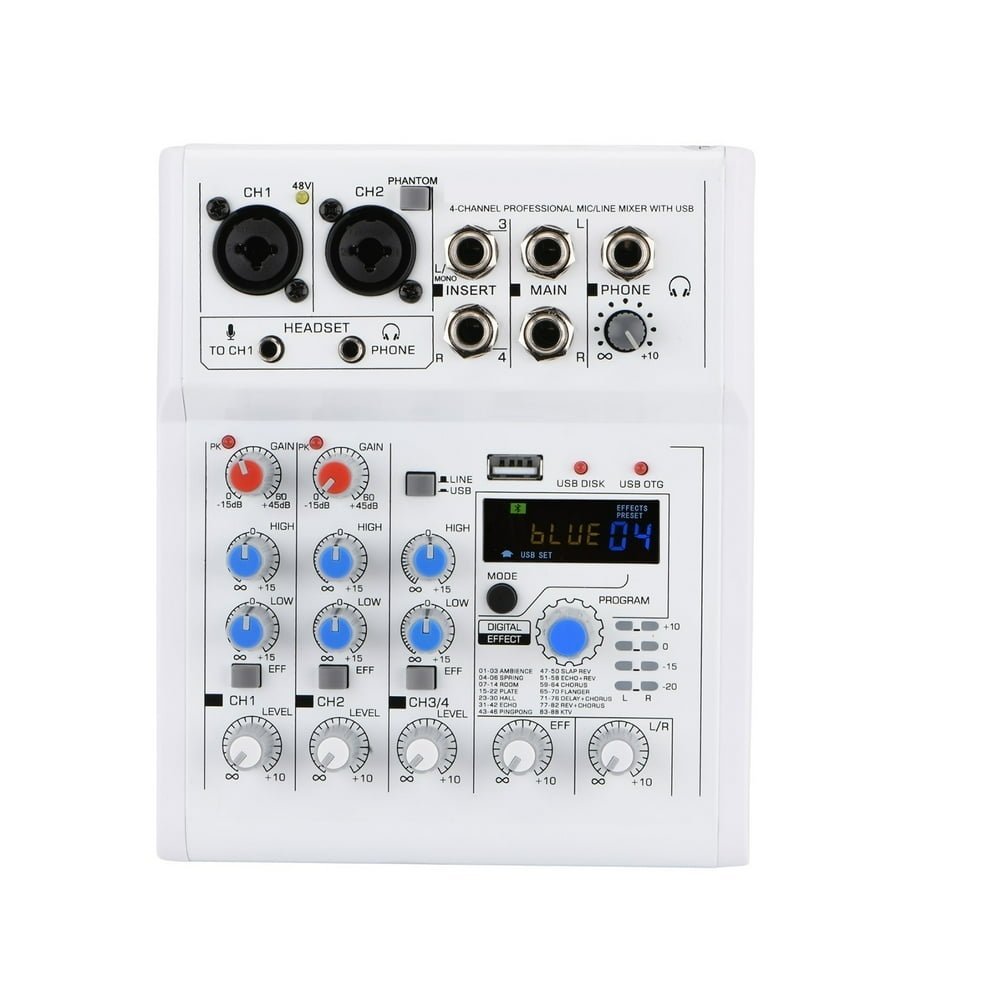
4-Channel DC 5V Mobile/Computer USB Play & Record Mixer (88 DSP Effects)
4-channel analog mixer with USB play/record and built-in DSP effects for simple mobile or computer audio setups.
$117.49
4‐channel compact mixer with proven high headroom
1 mic/line input with studio‐level quality
Dedicated stereo RCA inputs/outputs for playback or recording
2‐band EQ with clean, precise t1 shaping
Phantom power for studio condenser mics
- 1. 4 Channel mixing console
- 2. 88 Effects
- 3. function
- 4. USB record, play
- 5. Connect to Mobile, Computer
- Mobile Live Broadcast
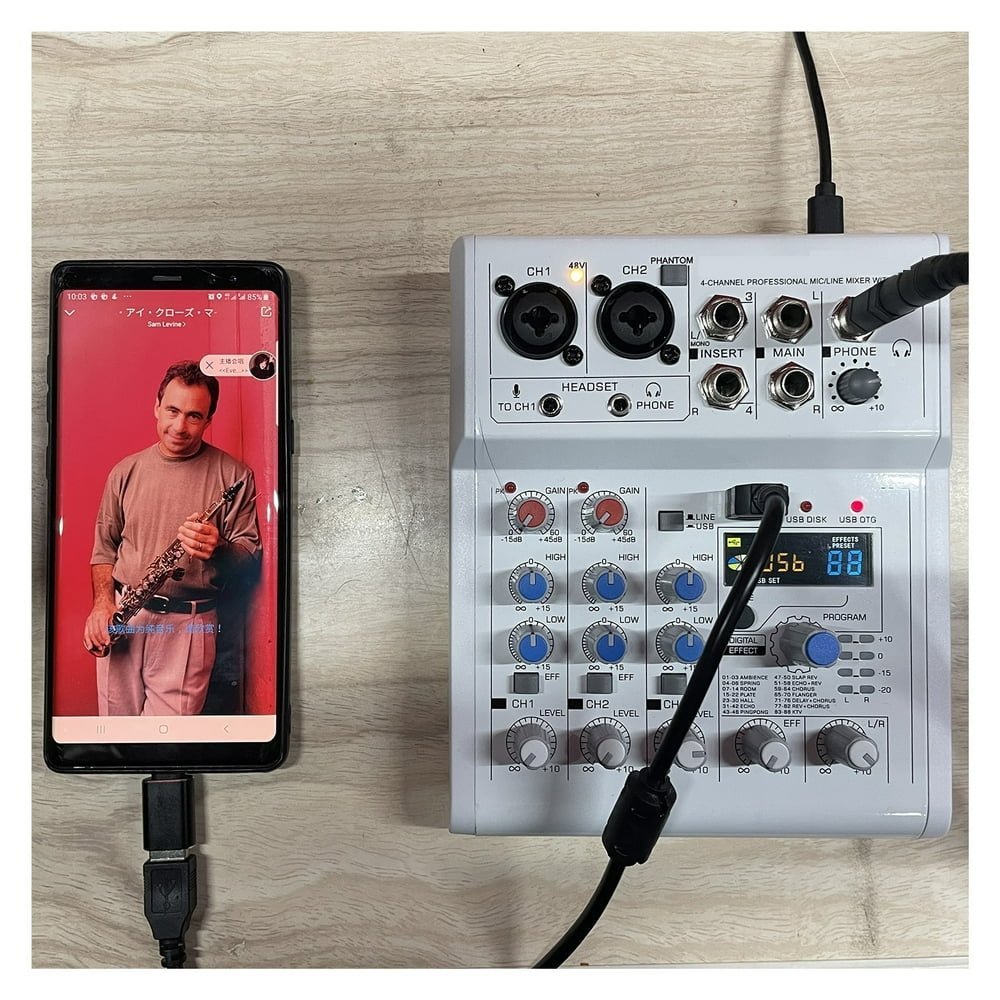
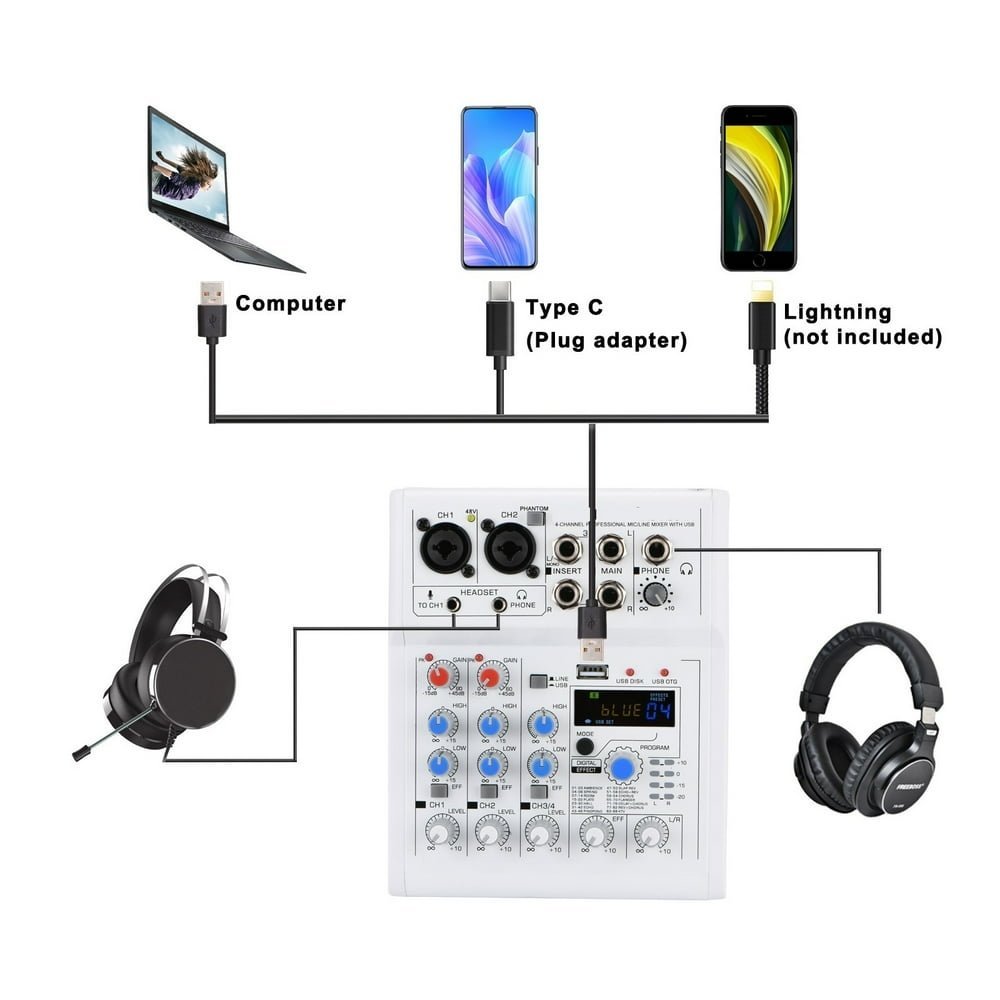
- 1. In the package, there is 1 piece USB cable , and a Type-C adapter.
- 2. You can connect your mobile to Mixer via the USB interface of the mixer
- 3. Mixer can receive the signal from Mobile, and Mobile can receive the signal from Mixer.
- 1. You can connect your computer to Mixer via the USB interface of the mixer
- 2. Mixer can receive the signal from computer, and computer can receive the signal from Mixer.
- PC play: you can play music from PC to mixer.–You need a pc music play software
- PC record: You can record the sound from mixer–you need a pc record software.
- Tips:
- (1)Front panel USB connect to PC,please turn the switch to USB power
- (2)Back panel USB connect to PC,please turn the switch to the PC
- Press “MODE” button, the white arrow will move to the left/middel/right position.
- Left: Function switch
- Middle: Player operation
- Right: Effect switch
- How to choose function
- Step 1.
- Press “MODE” to move the white arrow at the left position.
- Step 2.
- 1) Rotate “Program” knob to choose the function
- 2) Press “Program” knob to confirm.
- Note:
- . USB Play
- .
- . USB Record
- . Player play mode: Loop Cycle
- . Player play mode: Random
- . Player play mode: Single Cycle
- 88 Effects
- Effect setting
- Step1.
- Press “MODE” to move the white arrow at the right position.
- Step2.
- 1). Rotate “Program” knob to choose the effect.
- 2). Press “Program” knob to confirm.
- Effect input:
- Step 1.
- Rotate “EFF” knob to adjust the Effect level.
- Step 2.
- Press “EFF” button to input the effects to channels.
- Receive the signal from other transmitters.
- Choose Mode:
- Step 1.
- Press “MODE” to move the white arrow at the left position.
- Step 2.
- 1) Rotate “Program” knob to choose the function
- 2) Press “Program” knob to confirm.
- Connect Mobile to Mixer:
- Step 1.
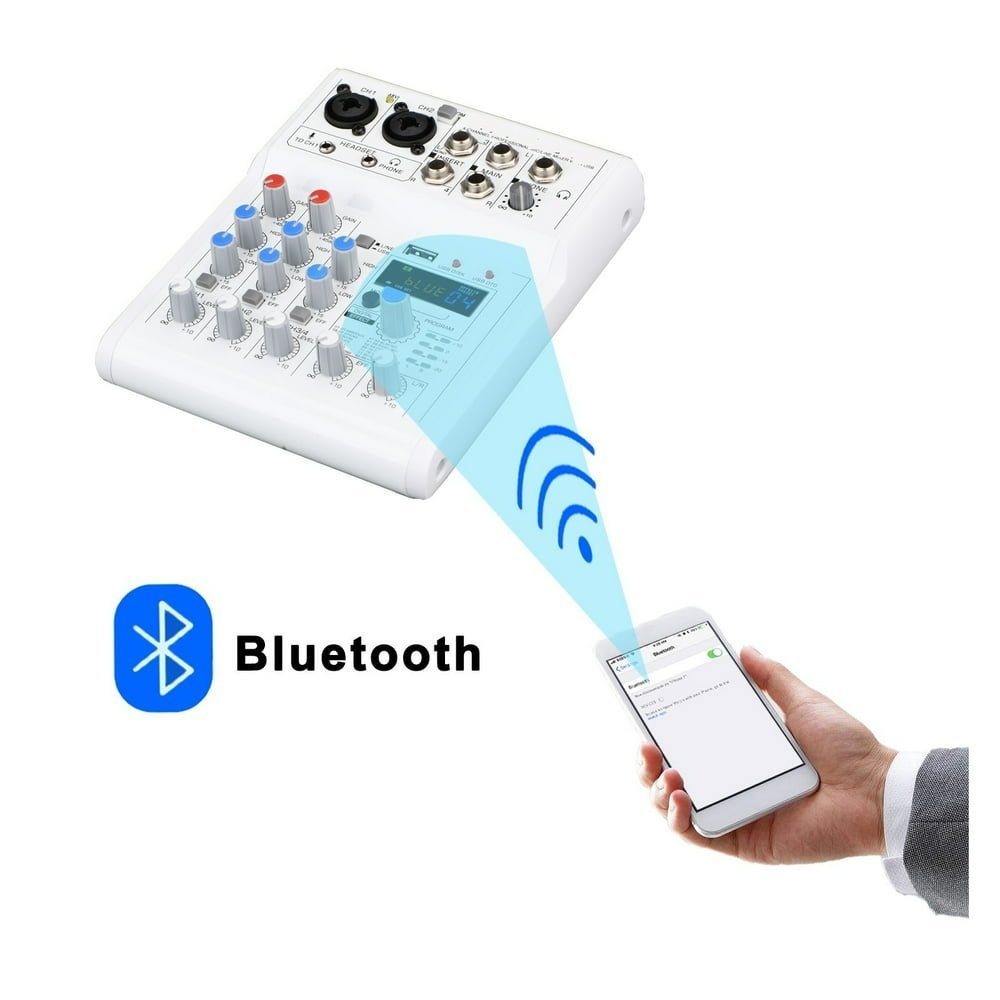
- Turn on your mobile function, and search for the mixer.
- Step 2.
- Pair the Mobile and Mixer
- Step 3.
- Turn on your mobile music program to play music, mixer will receive the signal.
- How to play Pre or Next song, or Pause?
- Step 1:
- Press “MODE” to move the white arrow at the middle position.
- Step 2:
- 1) Pre/Next: Rotate “Program” to play Pre/Next song.
- 2) Pause: Press “Program” to pause
- volume adjust:
- Step 1:
- Press Line/USB button to “USB” status
- Step 2:
- Rotate Channel 3/4 volume Knob to adjust Channel output volume.
- Step 3:
- Rotate Main output knob to adjust the Main output volume.
- USB play:
- Step 1.
- 1. Insert USB stick, USB disk light will be on.
- 2. Mixer will play music automaticlly.
- Step 2:
- Press Line/USB button to “USB” status
- Step 3:
- Rotate Channel 3/4 volume Knob to adjust Channel output volume.
- Step 4:
- Rotate Main output knob to adjust the Main output volume.
- Note:
- 1. USB Stick: fat32
- 2. Music mode: MP3, WAV, WMA, FLAC.
- How to play Pre or Next song, or Pause?
- Step 1:
- Press “MODE” to move the white arrow at the middle position.
- Step 2:
- 1) Pre/Next: Rotate “Program” to play Pre/Next song.
- 2) Pause: Press “Program” to pause
- Enter Recording Mode:
- Step 1.
- Press “MODE” to move the white arrow at the left position.
- Step 2.
- 1) Rotate “Program” knob to choose the function
- 2) Press “Program” knob to confirm.
- Step 3.
- Press “MODE” to move the white arrow at the middel position.
- Record:
- Step 1.
- Press “Program” knob to begin to record.
- Step 2.
- Short Press: Record pause, press again, continue to record.
- Long Press: End the record.
- Play Record:
- Method 1: Long press “MODE”
- Method 2: Long press “Program”
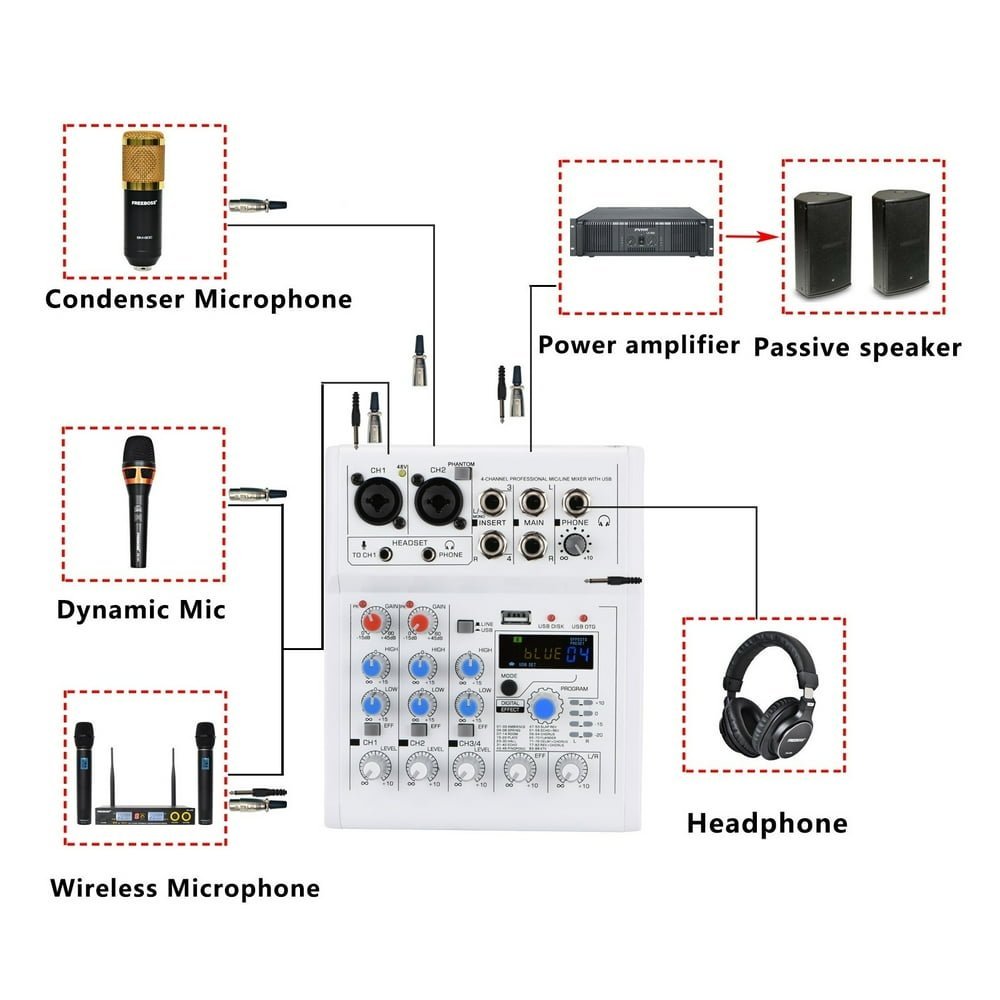
- 1. Press “Phantom” button, 48V led light will be on.
- 2. Channel 1 and Channle 2 will have +48V phantom–only for XLR jack.
- Dynamic Microphone
- For dynamic microphone, please do not use +48V phantom power.
- (please use XLR ,not a 6.3 ,because use the 6.3 ,the sound will be too small.)
- Condenser Microphone
- 1.Please sure if your condenser microphone supports +48V phantom power.
- (Note: Some condenser microphone does not support +48V phantom power).
- 2. Power on +48V phantom power to supply the power to conderser microphone.
- L/MONO Function
- For connecting to Line-level devices such as an electric keyboard or an device. Use the [L/MONO] jack on channel 2 for instruments. Etc. with mono output.
- Signal only input to [L/MONO] jack: Output is stereo.
- Signal only input to [R] jack: Output is only right.
- Signal input to [L/MONO] and [R] jacks: Output is stereo.
- Phone volume adjust:
- 1. Channel volume
- 2. Main out volume
- 3. Phone volume
- [Headset] microphone and phone (3.5mm)
- It is for headphone with microphone.
- Note:
- when you connect 3.5mm microphone to mixer, the signal will be input in Channel 1. XLR/6.3 jack will be cut off.
- PHONE (6.3)
- You can connect your phone to mixer via 1/4″ jack.
- Packing List

There are no reviews yet.